Preparation
- The preparation for creating this Chrome theme is the screen size of your desktop/laptop.
- Adobe Photoshop or Photopea (if you lazy to Install Photoshop)
- ThemeBeta Web, to create and publish the theme
Take a Screenshoot
Take a screenshot of your desktop, then paste it into a photo editor. Here, I’m using Photopea (because I can’t be bothered to open Photoshop).
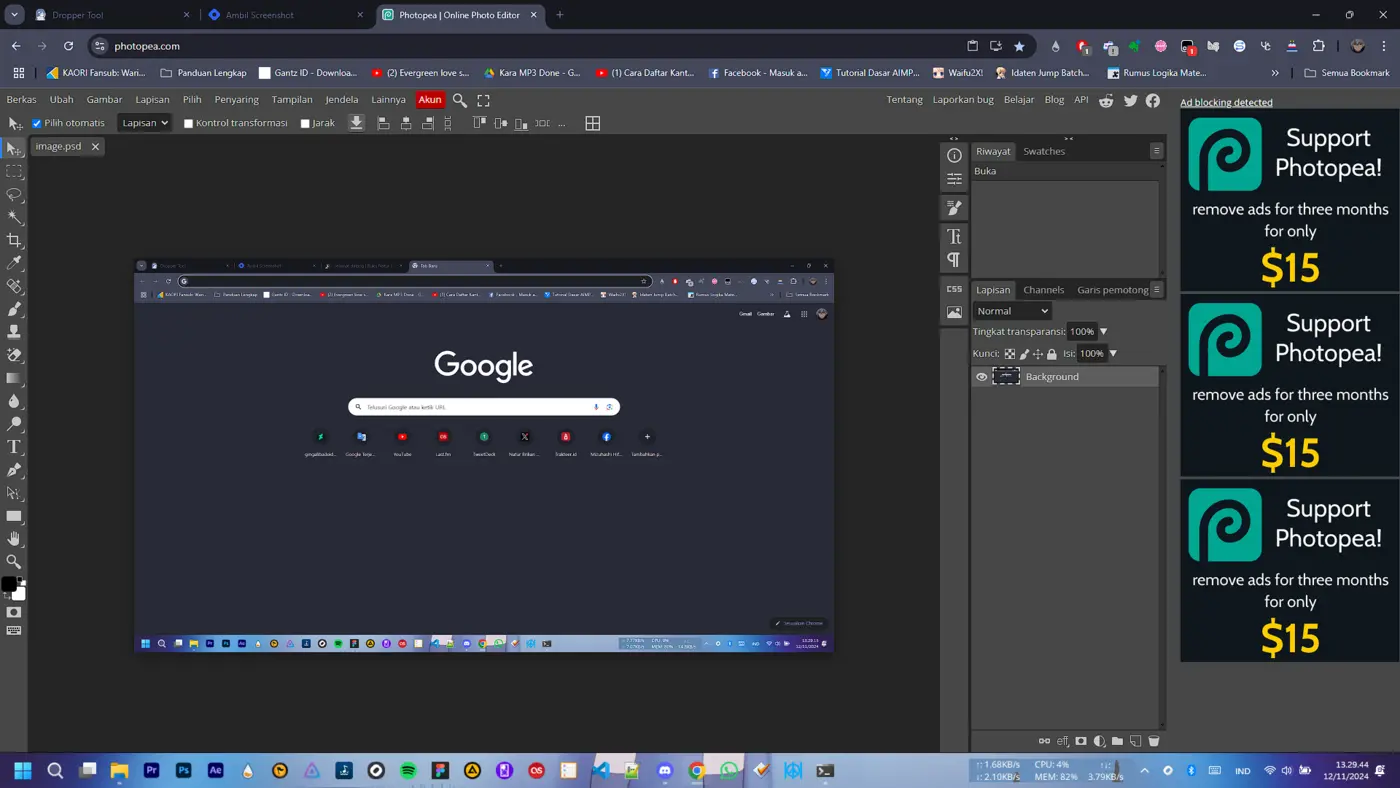
Don’t forget to mark it like this, this is to determine the layout so that it is more perfect when applied.
Cut some parts
Now we cut several pieces, which will later be divided into 6 pieces, namely:
- Toolbar
- NTP Background
- Frame
- Tab Background
- NTP Attribution (You can skip this part)
- Frame Overlay
Create a background for the toolbar
First, cut the screenshot you took earlier like this

After that, choose your favorite image as the theme. Here, I used the character Nao Tomori as the base theme. Add the base color and character like this, then save it in PNG format.
 After that, let’s upload it as a test to ThemeBeta, and this is a temporary preview.
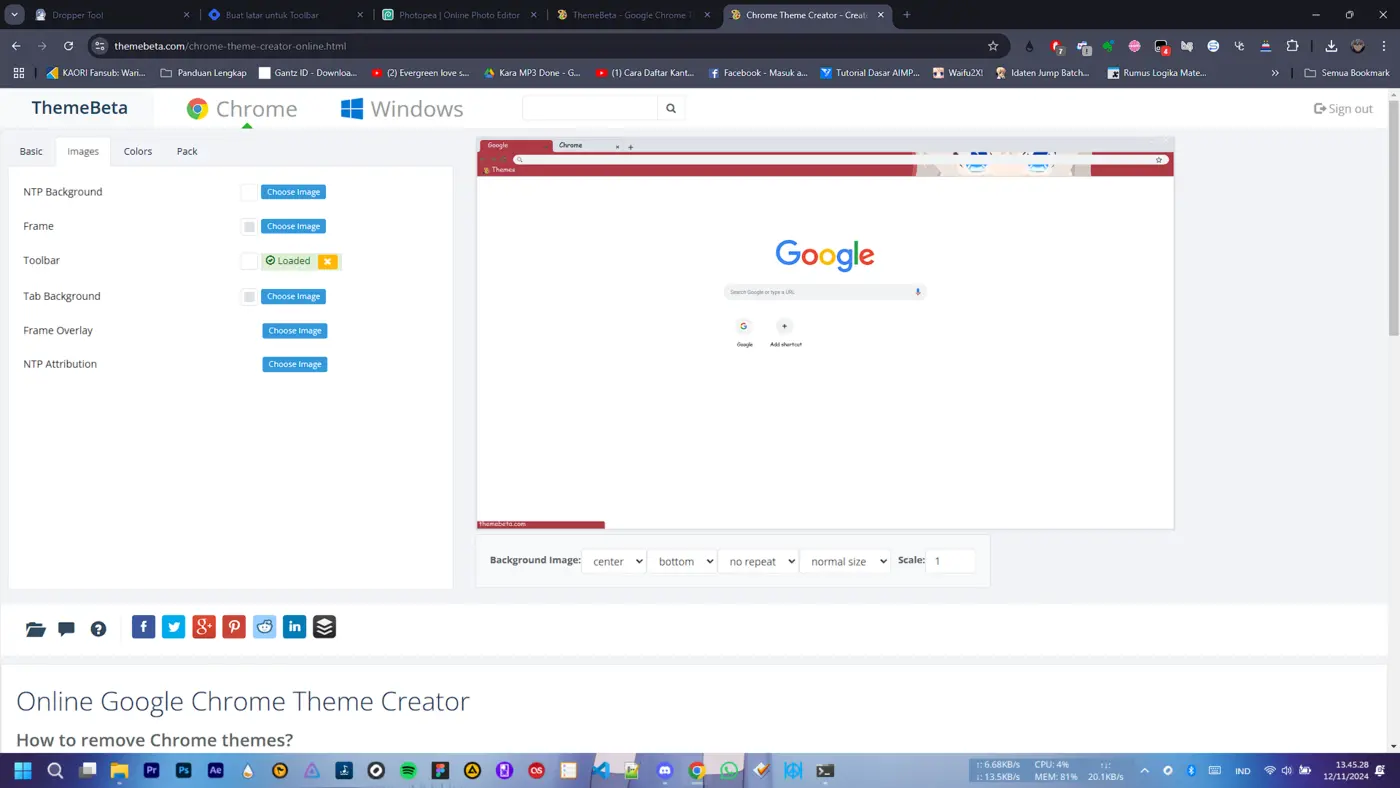
NTP Background
Now, let’s to the next step, which is creating the NTP Background. Now, let’s cut this part again. Then, let’s add the background like this and save it as a png file.
“Bro, the image I’m using doesn’t match the preview? Let’s measure it again and crop it.”
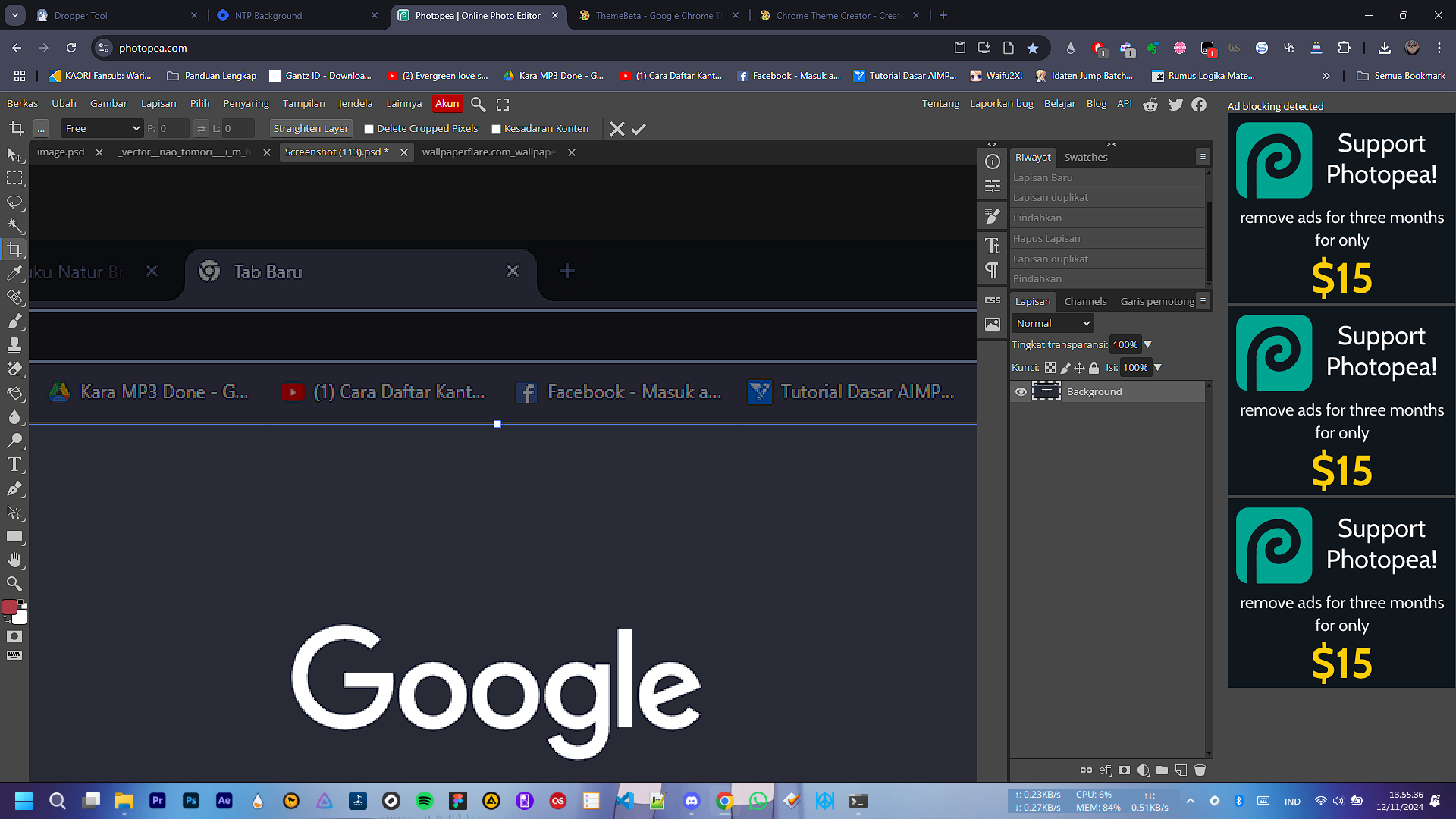
When cropping a screenshot, it is recommended to zoom in like this.
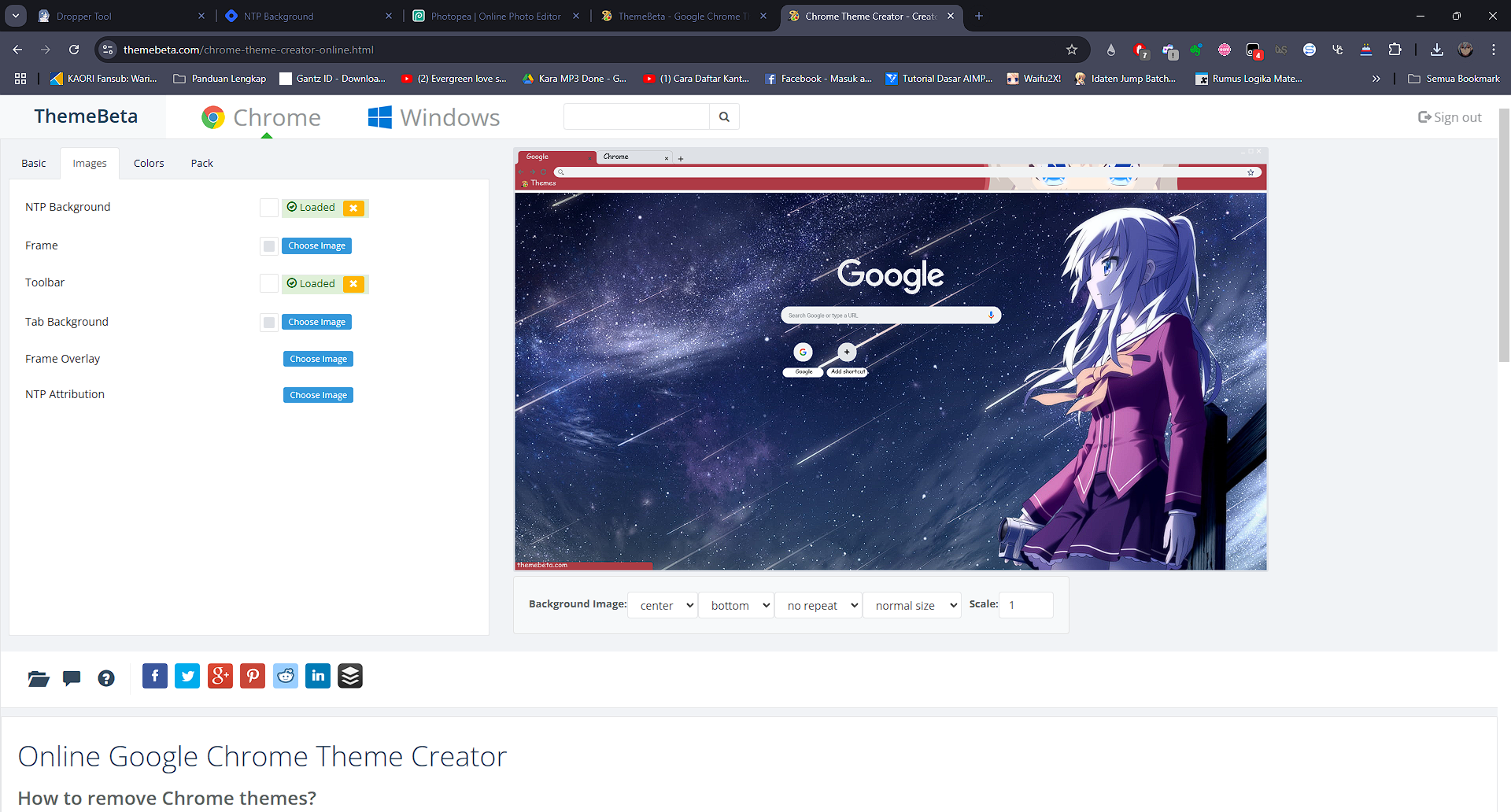
After that, add your image, save it again, and test it again on ThemeBeta. The result will look like this.
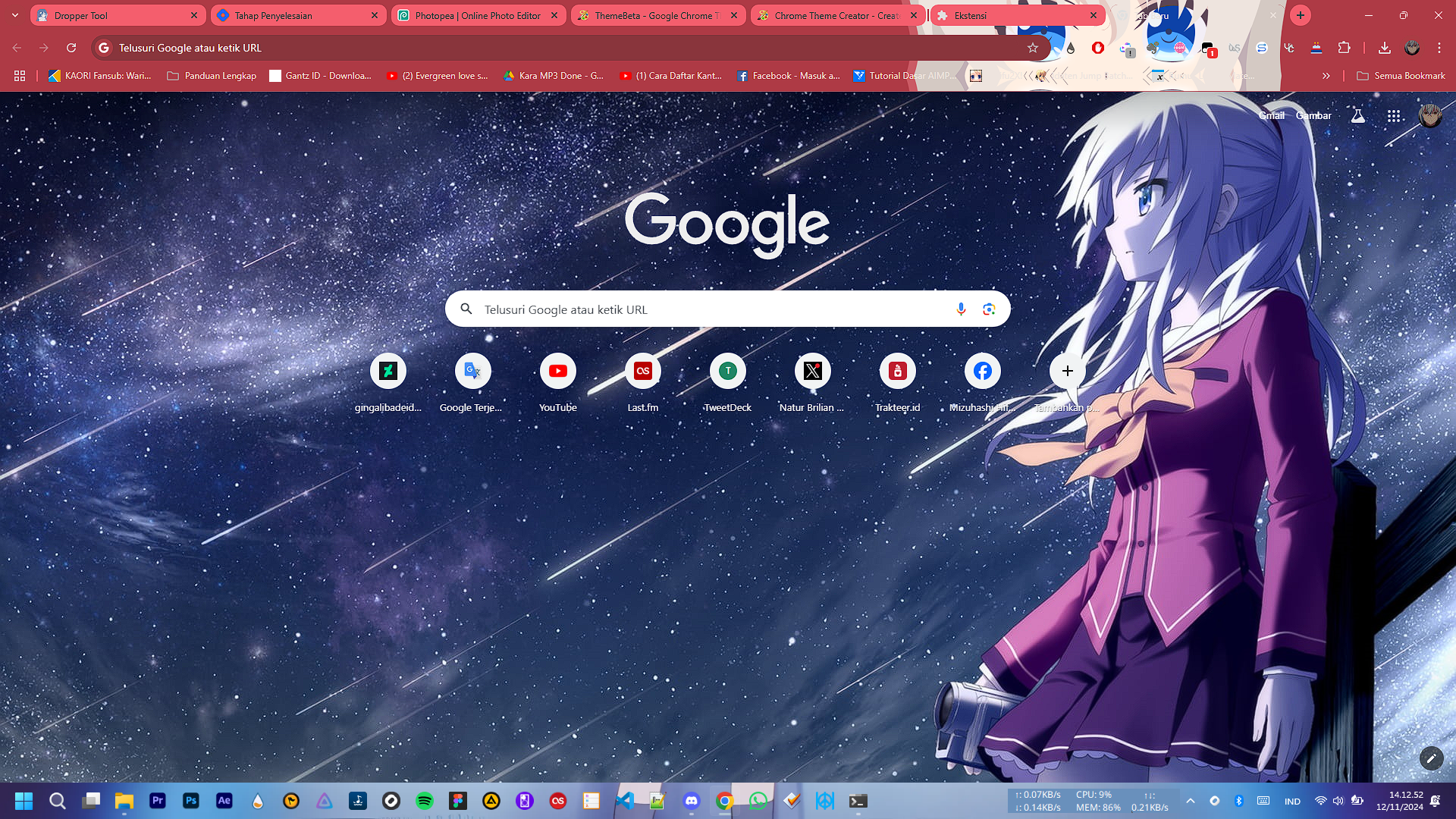
Finished and easy, right?